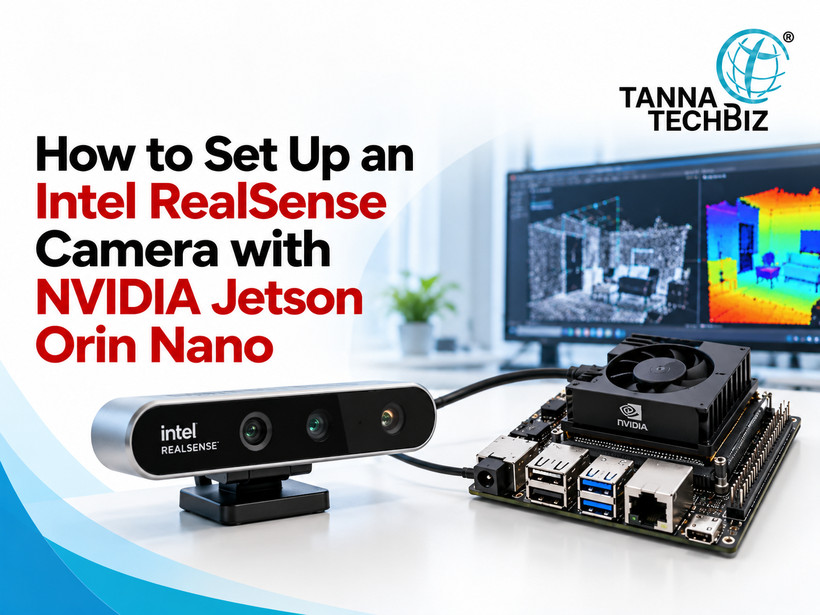
Setting up a depth camera for your robotics project sounds exciting until the technical problems begin. The camera is not detected, software installation fails, and the video feed stops abruptly. And the list goes on. But there are ways to make things simpler and quicker. In this article, we discuss how to connect and set up RealSense D435i to an NVIDIA Jetson Orin Nano.
The Orin Nano board is one of the best options for developers who need a robust platform for computer vision and robotics projects among NVIDIA Jetson developer boards. But just plugging in the USB cable is not enough. You will also need to ensure stable power delivery, compatible software and configure the device.
Prepare your Hardware before Any Connections
Start by getting a Jetson Orin Nano Developer Kit, a camera and a good USB 3.0 Type-C cable. Other things you might need include an adequate power supply, storage with JetPack installed and an internet connection.
First of all, check whether your installed version of JetPack supports the necessary software for this camera. Then, update your system and reboot. This prepares the board for further installation.
Check if Your Camera Really Gets Detected
Directly plug your camera into a USB 3.0 port. Try to avoid using a USB hub at the first test stage since it can cause some connection problems.
Afterwards, open a terminal window and enter the command lsusb. If nothing gets displayed, try another cable or USB port. Also, examine your recent system messages with dmesg.
Install the Software That Will Do All the Magic for You
This camera uses a special software library called librealsense. Start by installing the development tools and libraries that are necessary for it. Then, download the appropriate version of the library source and apply its device permission rules.
When dealing with NVIDIA Jetson developer boards, choosing the right software backend is important. The native V4L2 backend can be used in certain configurations. RSUSB backend can serve as an alternative. Sometimes, kernel patches are necessary. Always check the compatibility of the versions before applying them.
Test Your Camera Before Doing Any Development
After completing the installation procedure, run realsense-viewer app. Now you can test your depth, colour and infrared streams. Also, the camera can deliver information about motion from the IMU.
Unexpectedly stopped video feed? Check whether you have enough power, USB bandwidth and proper permissions. Also, you can use the rs-enumerate-devices command to make sure that the connection is established. These checks help to find possible troubles in advance.
Conclusion
A successful RealSense D435i setup requires proper connection, appropriate software and testing. When working with NVIDIA Jetson developer boards, checking software compatibility in advance is a must.
Tanna TechBiz works with robotics, embedded computing and computer vision projects by providing necessary hardware.

 October 26, 2026